Layer Stack#
A Layer stack is a hierarchical arrangement of Layers. It can be background, foreground, details, outline, colors, etc. It can be used to organize and manipulate different elements of your artwork. It enables you to work on individual components separately and non-destructively, allowing for precise control and creative flexibility.
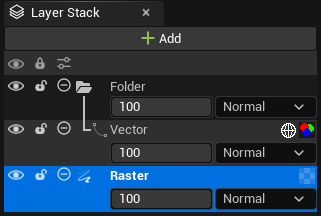
The Layer Stack is found in the 3 paintable assets: Texture 2D, Flipbooks and Animation 2D.
Layer properties#
Layer visibility#
Per layer#
You can change the visibility of your layers individually thanks to these icons:
Icon |
Description |
|---|---|

|
The eye icon makes you able to show or hide the layer. |

|
The lock makes you able to lock or unlock the layer. Once locked you can not edit you layer. |

|
This + or - icon can be used to show more or less details about the layer. |

|
Use this icon to affect the content of the current layer by the alpha channel from the layers underneath (clipping mask) |
Global actions#
You will also find global actions to affect the entire stack by clicking on the main Layer Stack bar:
Type |
Description |
|---|---|
Activate / Inactivate Layers |
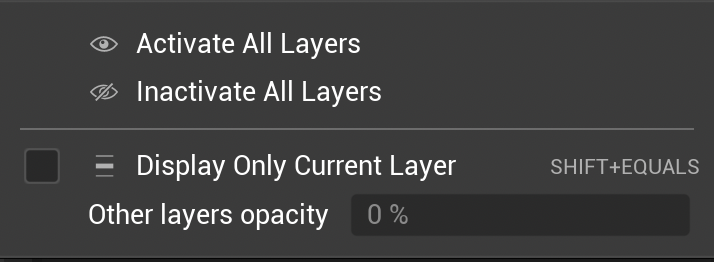
Hide or show all layers. You can also use “Display only current layer” to automatically display the current layer only. If necessary, you can add an opacity nuance on the other layers of the stack.# |
Lock / Unlock Layers |
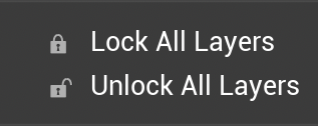
Lock or Unlock all layers.# |
Collapse / Uncollapse Layers |
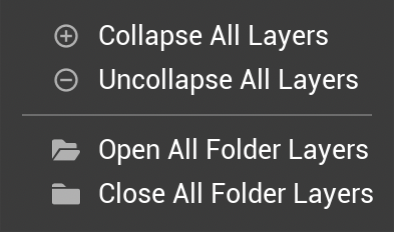
Collapse or Uncollapse all layers. You can also Open or Close all Folder Layers.# |
Opacity#
Change the opacity of a layer. You can click and enter a value or use the slider.

Blending modes#
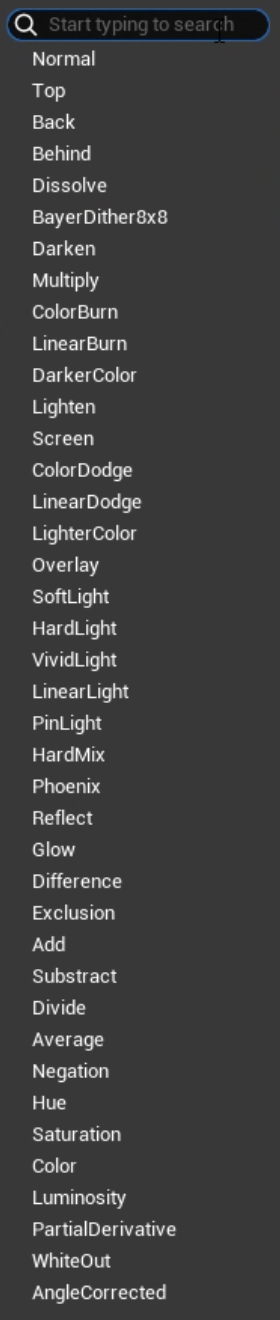
These modes alter the way colors, tones, and pixels from one layer interact with those of layers beneath, resulting in various visual effects.
Tip
Use the search engine at the top of the list to easily find a Blending mode.
Layers types#
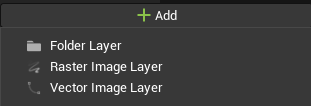
Click on the button “Add Layer” and choose either “Raster Image Layer” or “Vector Image Layer” to add a layer.
Raster layer#

A Raster Layer is an image layer composed of pixels, where each pixel contains color information, and it’s commonly used for bitmap graphics.
On a Raster Layer, you can use this icon to lock / unlock the Alpha Mask.

Alpha Mask blocks the transparency and will only allow you to paint on existing pixels. It’s a very useful option to change the color of an outline, for example.
Vector layer#

A Vector Layer is an image layer consisting of mathematical paths defined by points and lines, allowing for scalable and editable graphics without pixelation.
Vector Layers displays two additional icons:
monochrome mode to hide all vector Paint Buckets (read this page to know more about vector Paint Bucket)
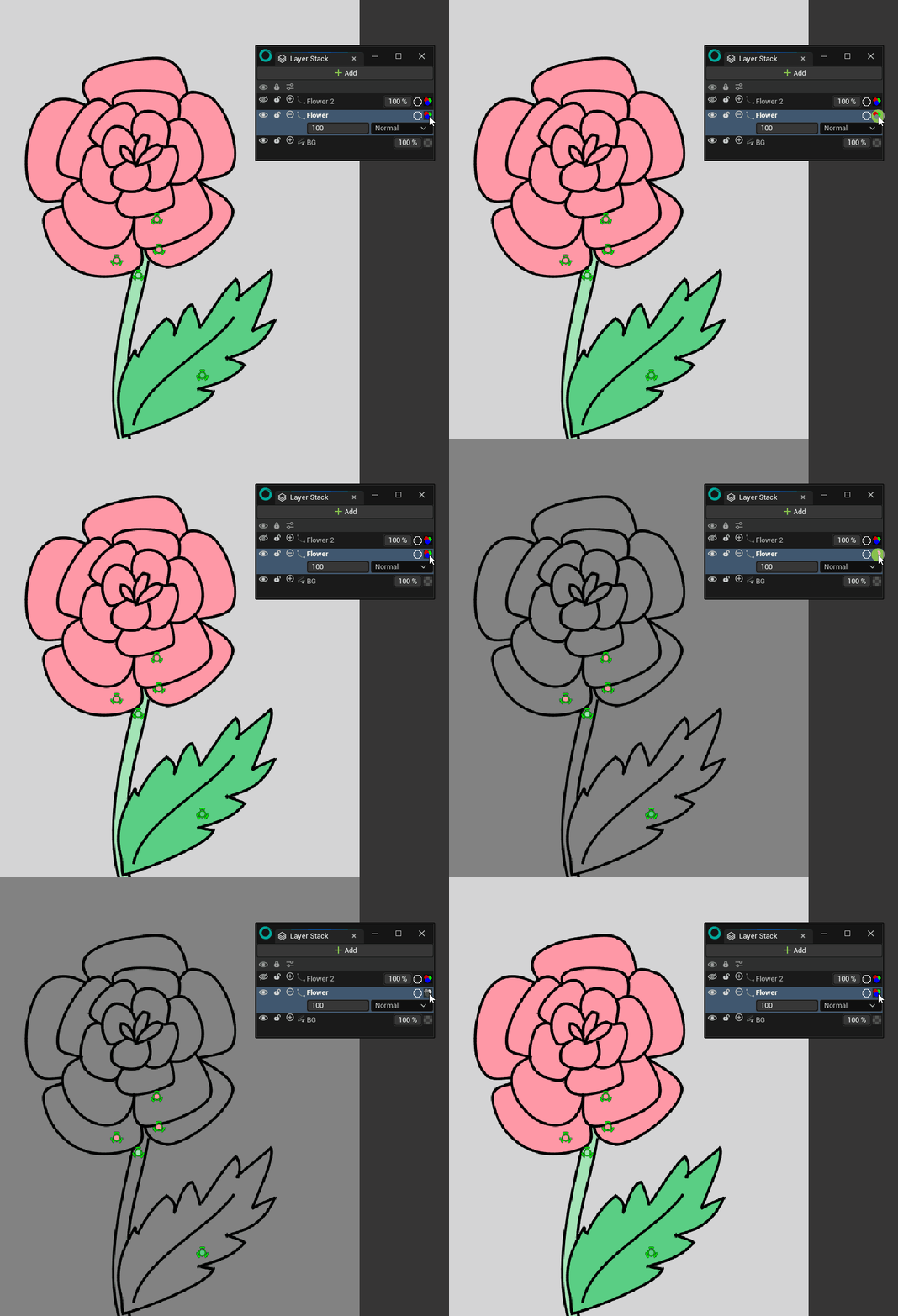
wireframe mode to identify gaps in the vector object
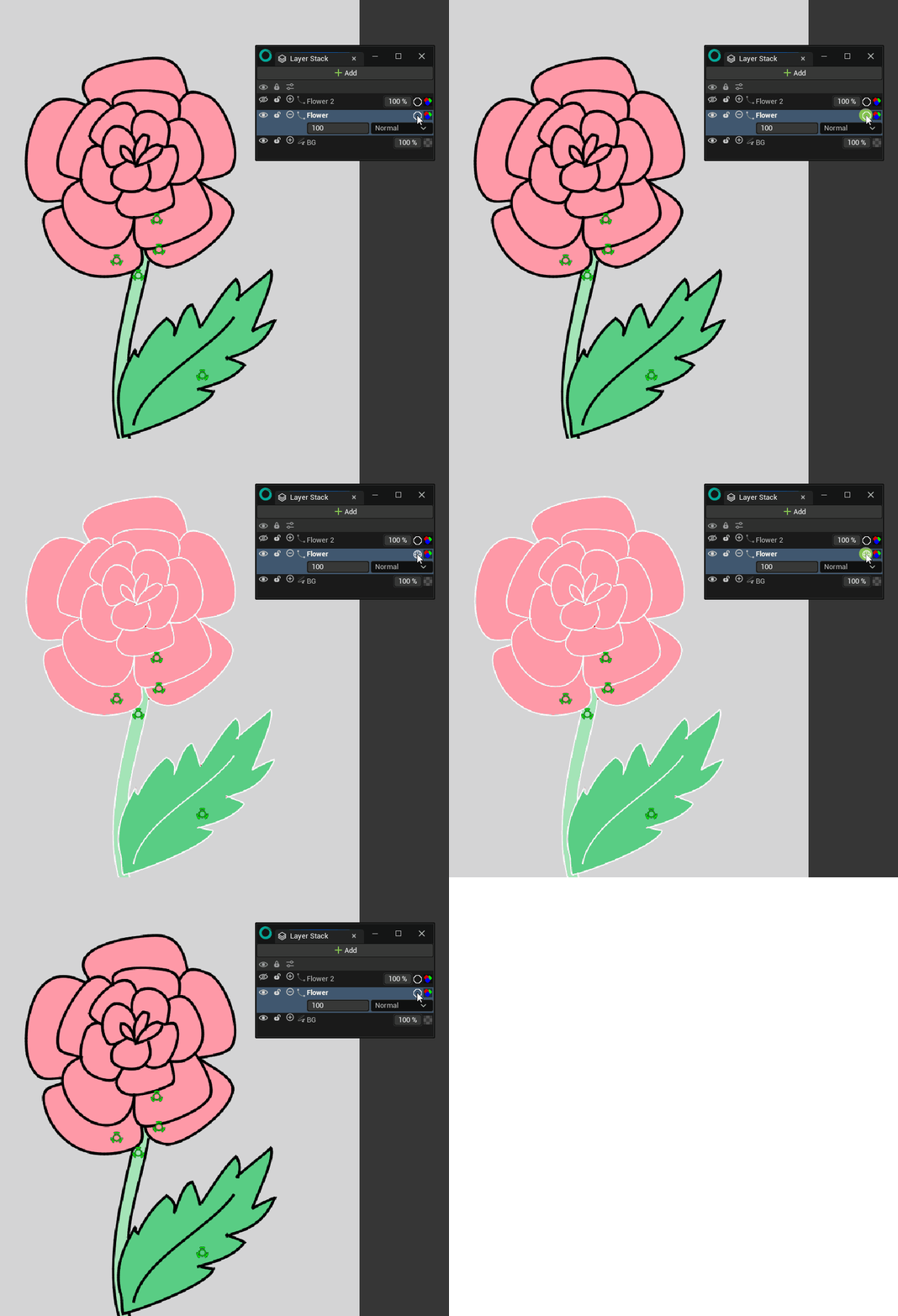
When creating a Vector Layer, you also create a “Scene” of infinite size, which will contain all your future vector paths and shapes.
Folder#
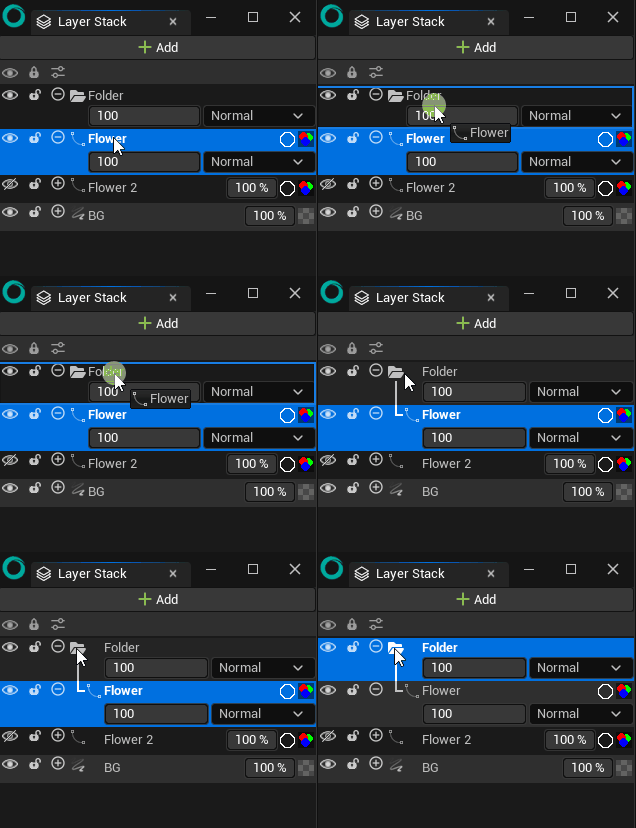
To create a new folder click on Add Folder Button. You can then drag and drop layers inside.
Other Actions#
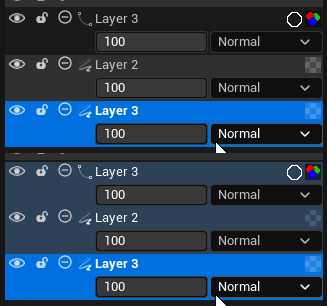
Multiple Selection#
Use Shift to select contiguous Layers:
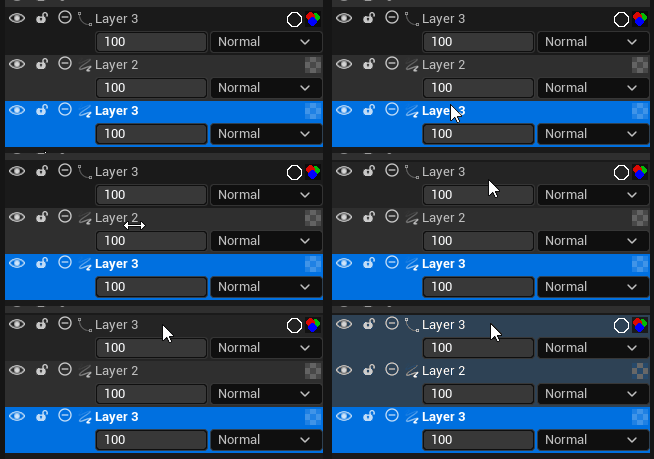
Use Ctrl to select non-contiguous Layers:
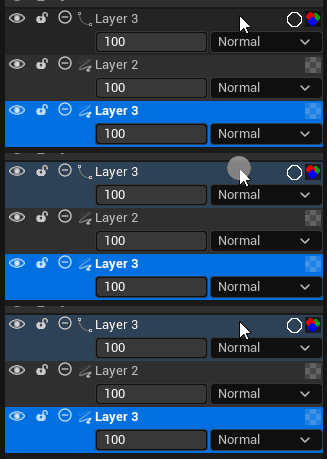
Use Ctrl+A to select all Layers:
Note
For the last one, Ctrl+A will only work if the Layer Stack is selected.
Contextual menu#
Make a right click on top of a Layer to display various options:
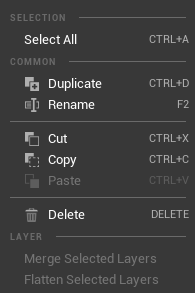
Select All |
Select all Layers from the stack. |
Duplicate |
Duplicate selected Layers. |
Rename |
Rename the current Layer. You can also hold the click to rename a Layer. 
|
Cut |
Cut the selected Layers. |
Copy |
Copy the selected Layers. |
Paste: |
Paste Layers that were copied or cut. |
Delete |
Delete the selected Layers. |
Merge Selected Layers |
Merge selected Layers that have the same type (Raster or Vector). You cannot merge Layers with 2 different types. |
Flatten Selected Layers |
Flatten selected Folders. Note Flattening folders only works with Raster Layers inside. Vector Layers will be ignored. |
Tip
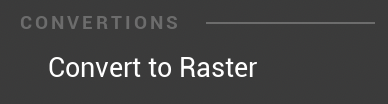
If you display the Contextual Menu on a Vector Layer, you will have the option to convert it to a Raster Layer.
Drag and drop#
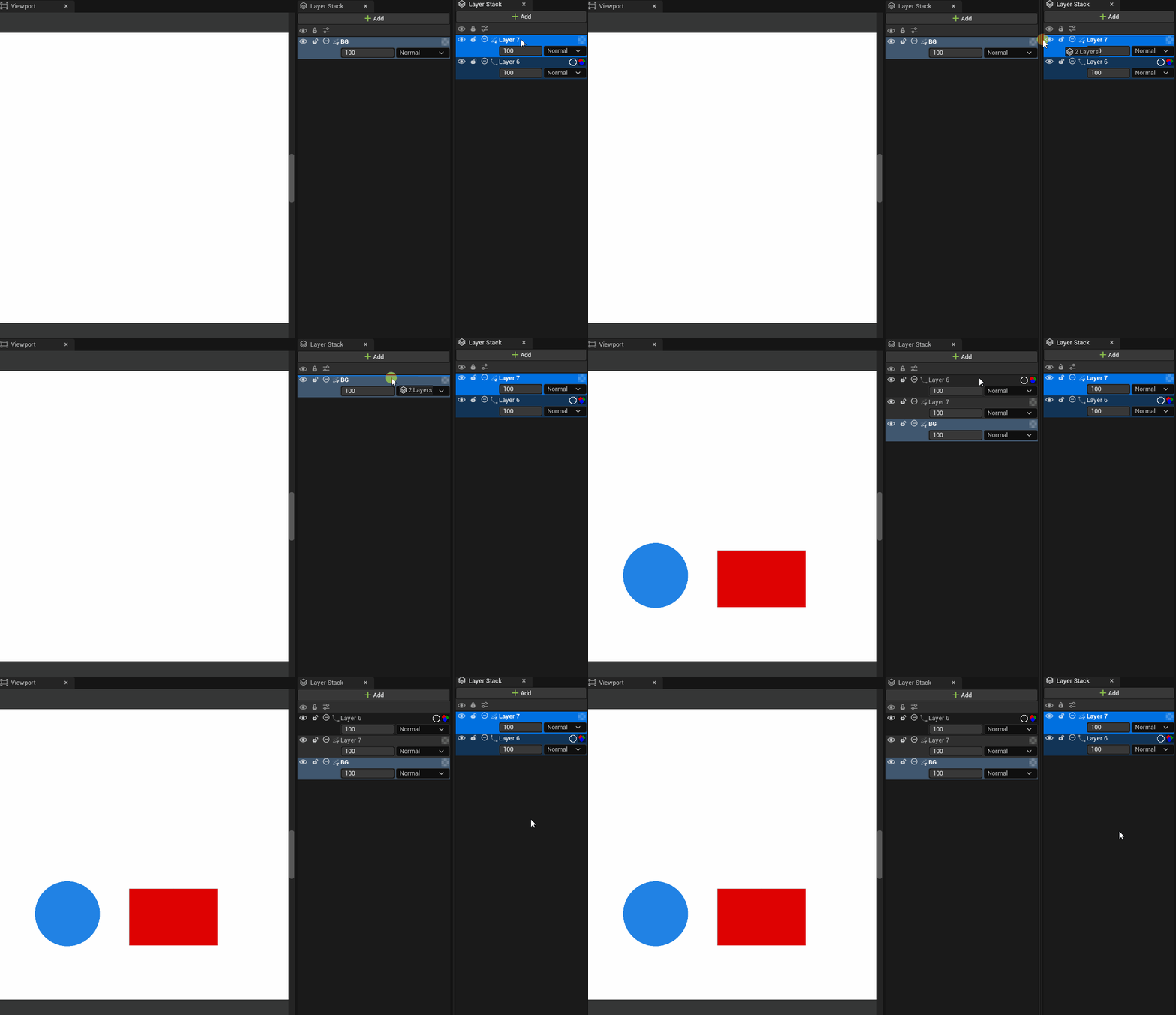
You can drag and drop Layers from a Texture 2D to another.