Detach Animation Actor#
Detaching Actor#
By default, Animation Actor are attached to the Camera. It means that if you move the Camera, Animation Actor will follow the Camera. In some cases, it might not be an interesting feature, for instance if a character is placed in the environment and the Camera does a dolly or a traveling move.
The only solution then is to detach the Animation Actor off the Camera. To do so, click on this icon:
in the Board View, in the corresponding Animation Actor
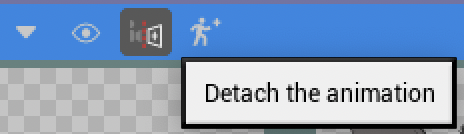
in the Shot View, after selecting the right Animation Actor

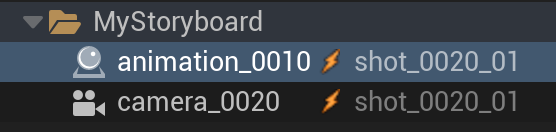
Once detached, if the World Outliner is active, you will realise the detached Animation Actor won’t be attached the to Camera anymore.
Warning
Add Transform Tracks and Keys ONLY after you detached a Animation Actor. If you add a Transform Track and Keys before, the coordinates will no longer take in consideration the coordinates of the parent (the Camera). Your detached Animation Actor will be then offset.
How to reattach?#
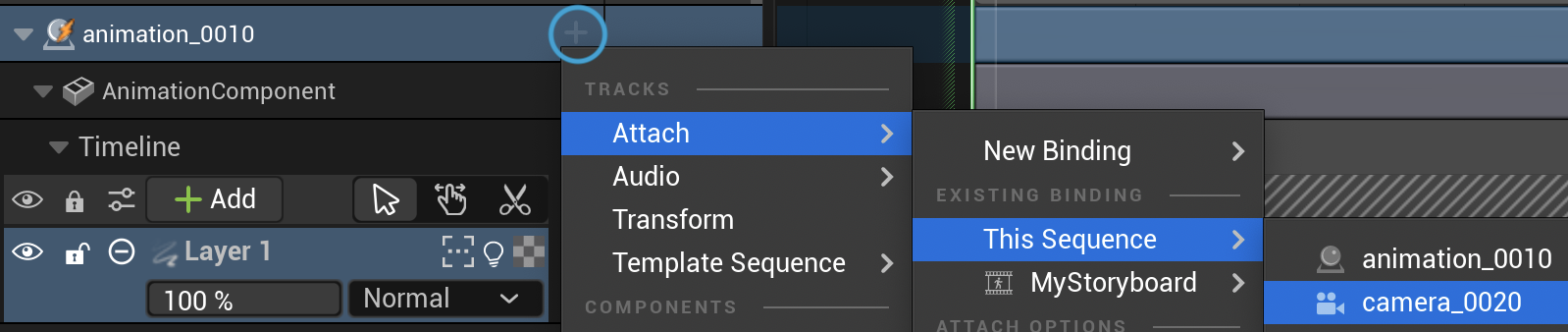
The only way to reattach the Animation Actor to the Cine Camera Actor is to do it manually.
Note
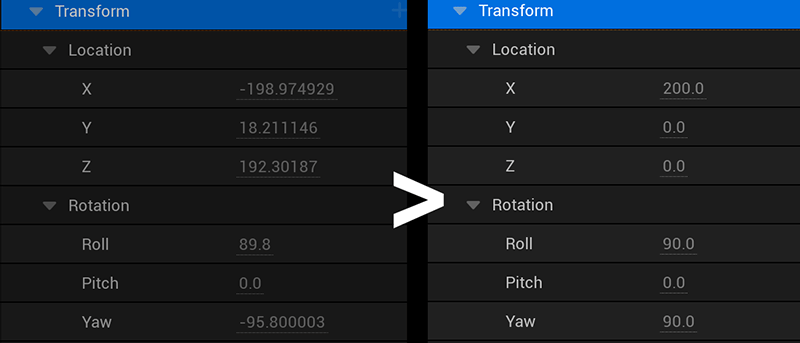
After reattaching the animation to the camera, you might need to reset the location and rotation of the animation as follow: