Import an image sequence#
Introduction#
Despite all Praxinos team did to make Odyssey appealing to storyboard artists, some will rather work on a third software because they are used to it and feel more efficient on it. That’s OK, there is an easy way to get their work in Odyssey and let layout or previz artist do the rest.
First of all, you will have to export the work done in a third sofware as an image sequence. Make sure the naming pattern can be easily analyzed with incremential numbers. There are 4 types of inputs that can be considered by the storyboard module:
The board, meaning the entire scene with different actions and camera cuts.
The shot, meaning the camera angle used without any cut.
The panel, meaning the drawing describing the actors’ actions.
The duration, meaning where the panel should be placed as frames
Only the shot and the panel are mandatory.
Here is an example of an image sequence:
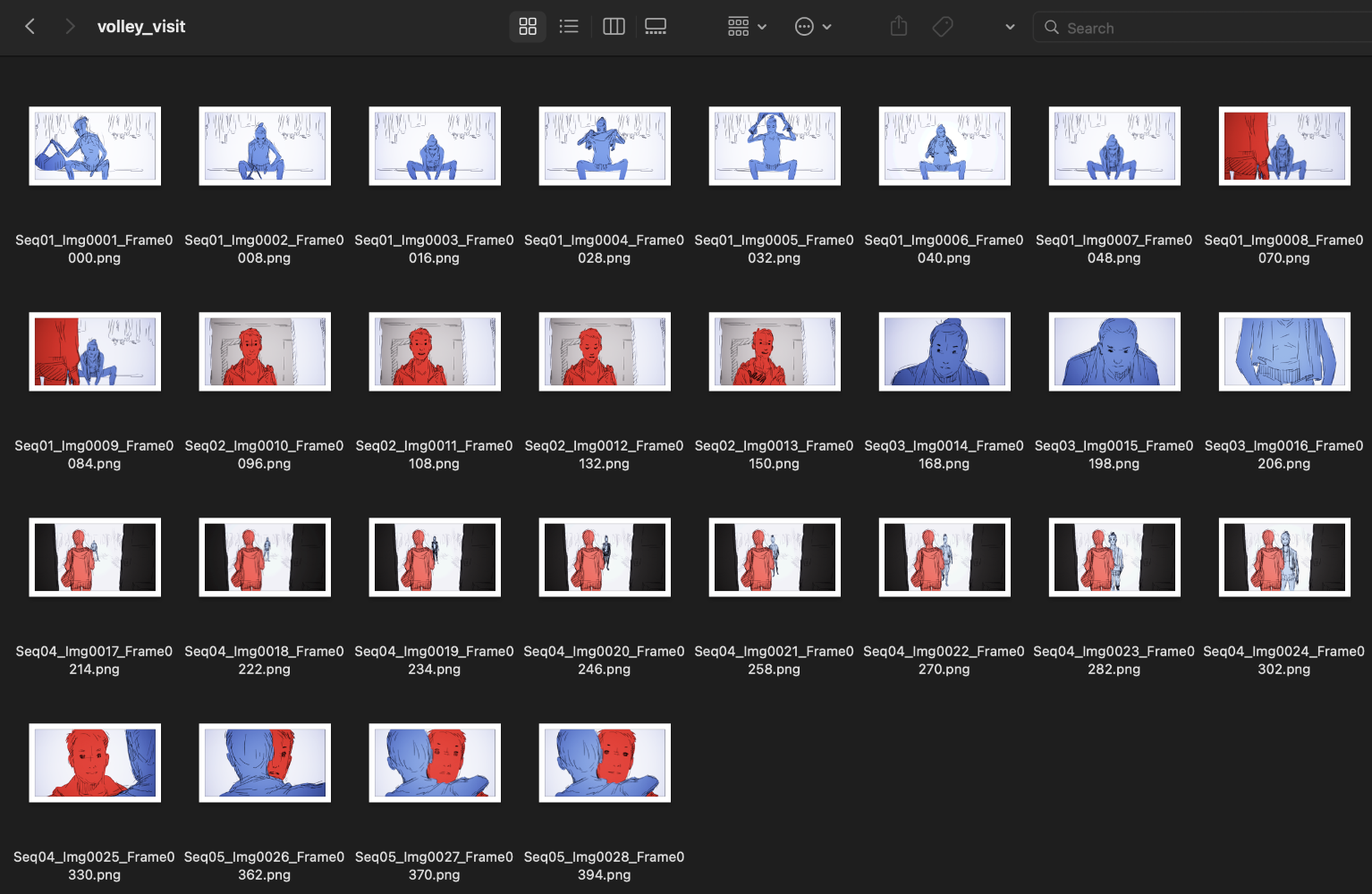
In this example:
Seq(incremential) corresponds to the shot
Img(incremential) corresponds to the panel
Frame(incremential) corresponds to the frame number of the panel
Import#
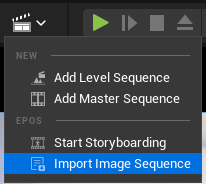
Now you have an image sequence, let’s see how to import it. Click on the clipboard icon at the top bar menu and select “Import Image Sequence”
You will be displayed this panel:
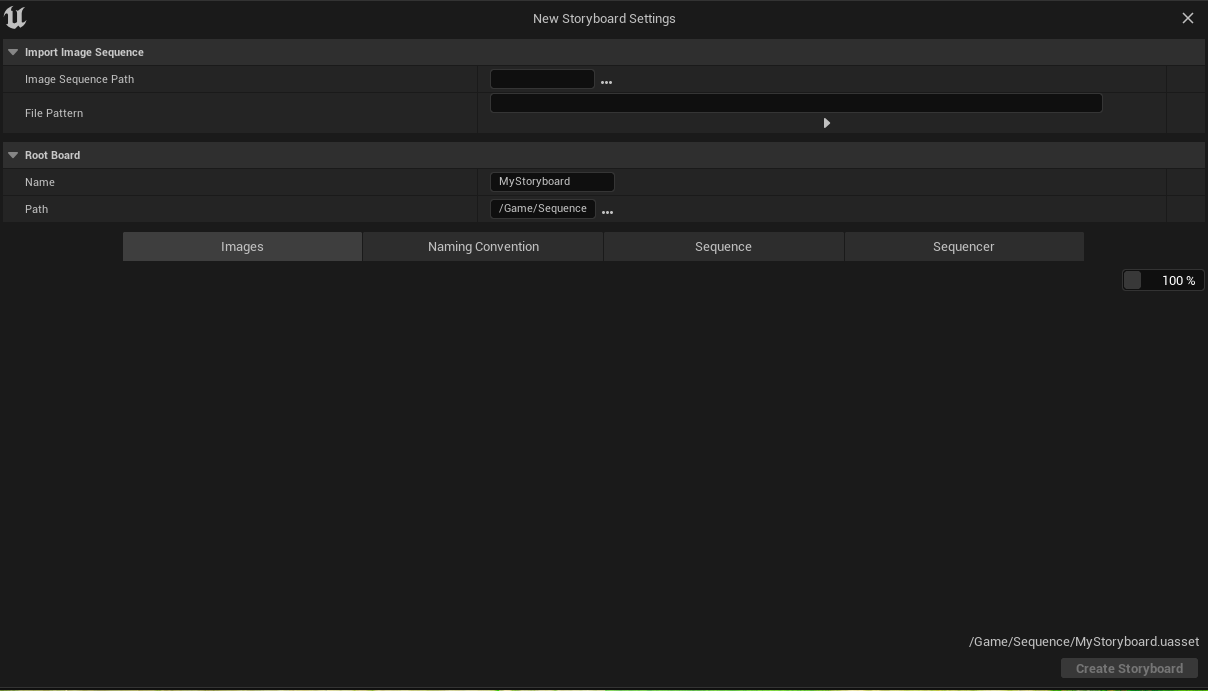
Let’s focus on the first category “Import Image Sequence”:
Image Sequence Path will allow you to select the path in your computer to your image sequence.
File Pattern will allow you to choose the naming pattern of your sequence. Click on the tiny triangle to show more options to copy paste in the pattern.
The pattern
{board}will create a sub-Board Sequence in the root Board Sequence.The pattern
{shot}will create Shot Sequences.The pattern
{panel}will create Cells in a single Animation Actor.The pattern
{duration}will place the Cells at the righ frame in the Sequencer, to respect the exposure of each Cells.
If we use the same example as above, the pattern will be: Seq{shot}_Img{panel}_Frame{duration}.
Note
Pay attention to any symbol, uppercase, lowercase or blank in the original pattern! It must be exactly the same!
If the pattern is correct, the category “Root Board” will display the name of the folder in the sub-category “Name”, and you will see thumbnails of the whole sequence below.
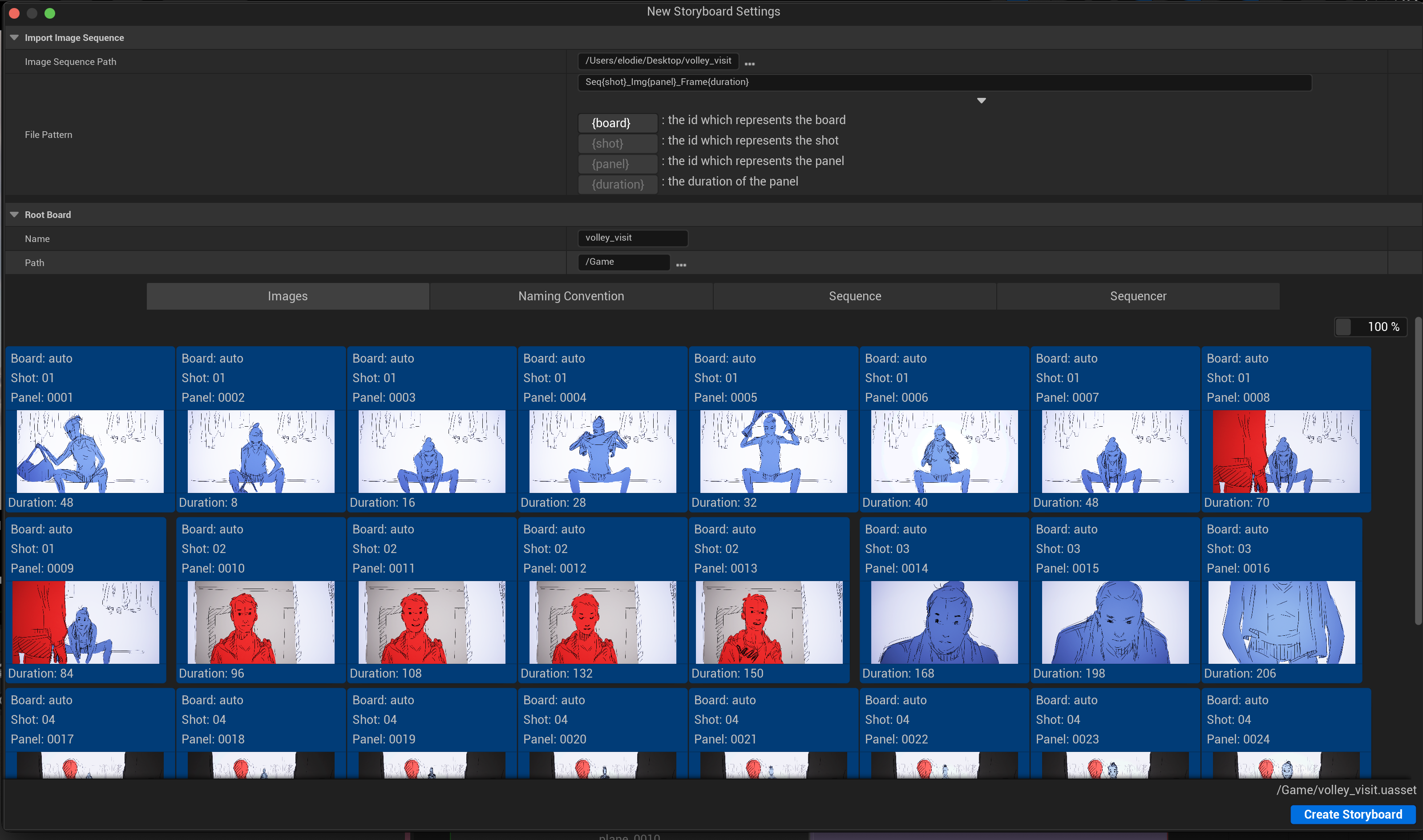
Before creating your storyboard, don’t forget to:
Override the duration of each frames if necessary.
Choose if you want to create Spawnable actors (recommended) or Possessable Actors (untick the Spawnable checkbox).
Select the Path of the Root Board to save all the assets (Animation 2D, Shot Sequences and Board Sequences) at the right place in the Content Browser.
Determine if you prefer to generate a new Level (not necessary if the option “Spawnable” is enabled) or remain in the current Level.
Click then on the button “Create Storyboard” to create all assets and actors needed.