
2D Viewport#
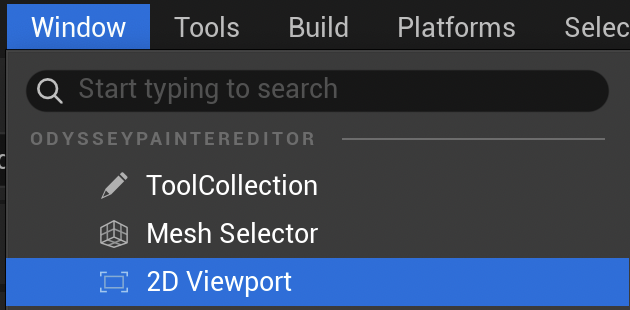
The Viewport (2D) is enabled by default, but if not visible, it can be found in the top menu “Window”:
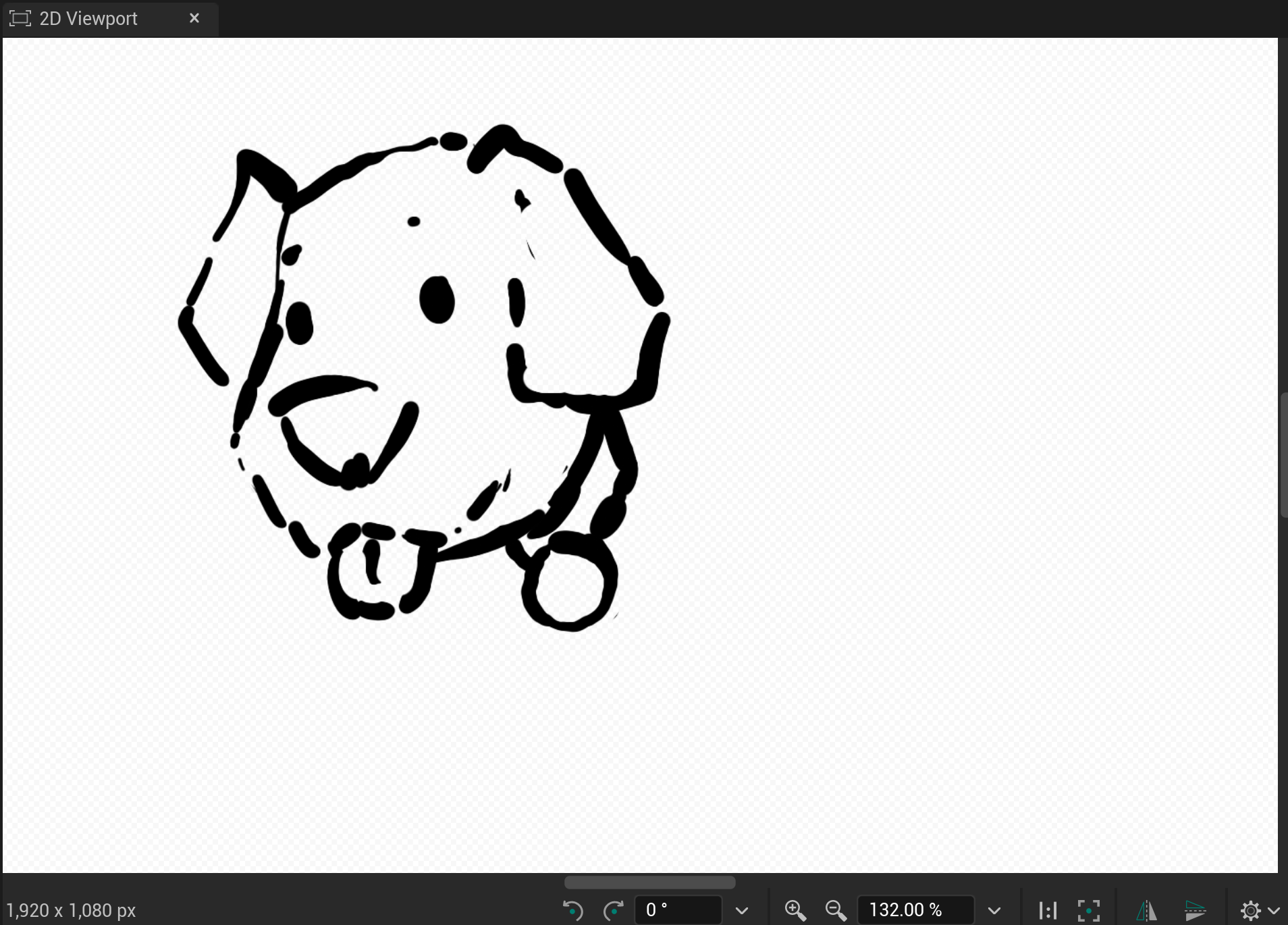
Whatever if you work on a Texture 2D, a Flipbook or an Animation, the Viewport will look that way:
Dimensions#
Located at the bottom left corner of your Viewport, this area shows the size (in pixels) of your image.

Warning
You cannot change the dimension of your Texture or Animation 2D. Choose wisely when creating them!
Pan#
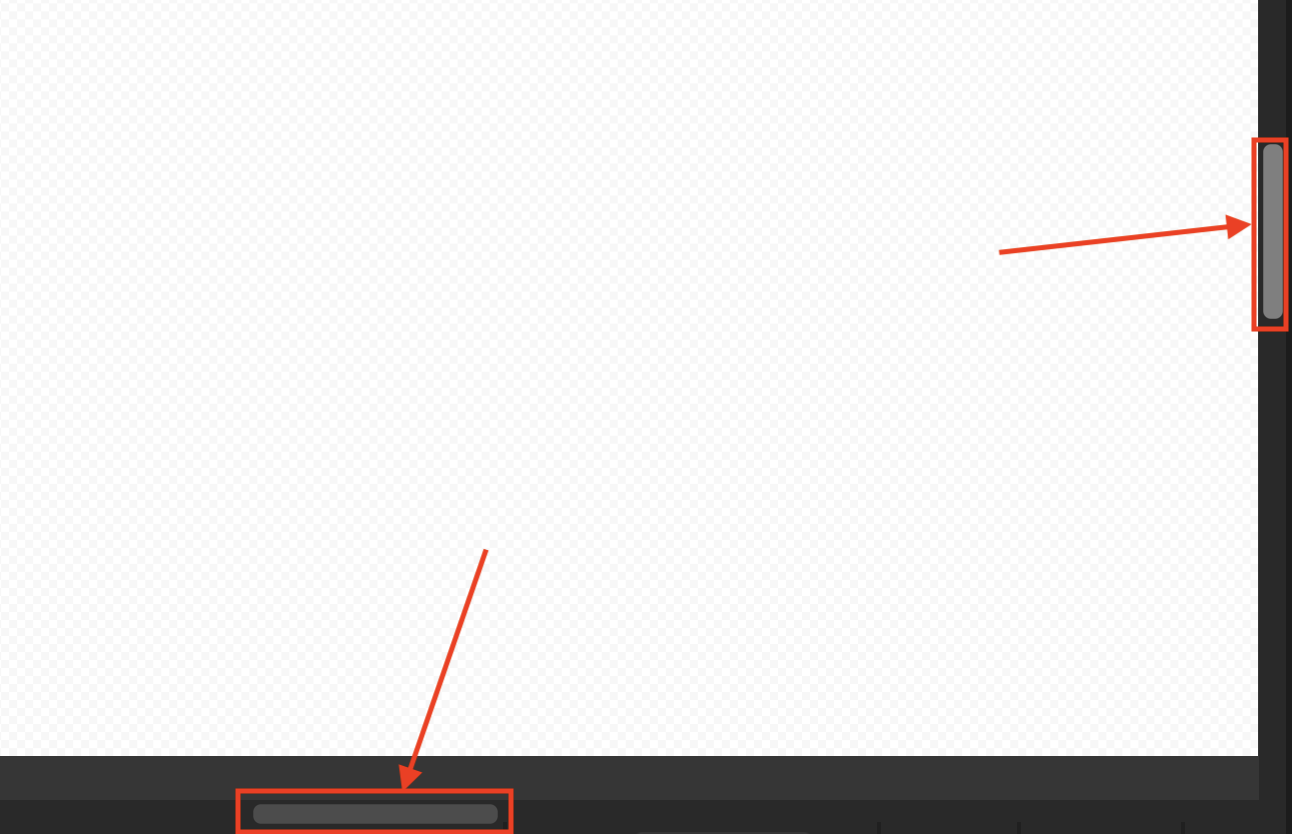
To pan your canvas, you can use the navigation bars on the right and at the bottom.
Tip
You can also use the shortcut M+LMB to pan your canvas with your mouse or stylus.
Rotation#
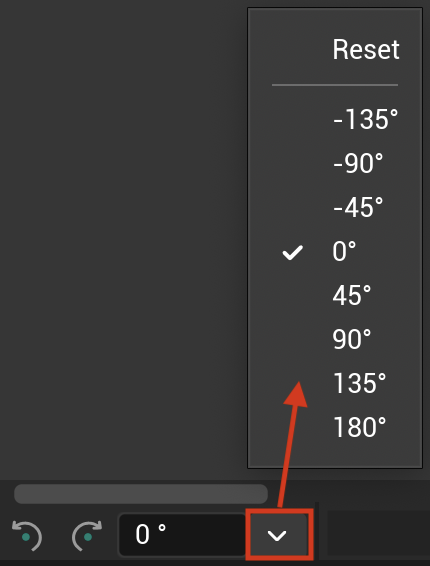
This area is used to rotate your canvas. You can either enter a value (in degrees), or use the slide, or use the clockwise / counter clockwise arrows to rotate the canvas of 15°. You can also click on the arrow on the right to display a dropdown menu and choose a rotation degree or reset any rotation of the canvas.
Tip
You can also use the shortcut M+Ctrl+LMB on Windows or M+Shift+LMB on Mac to rotate your canvas with your mouse or stylus.
Zoom#
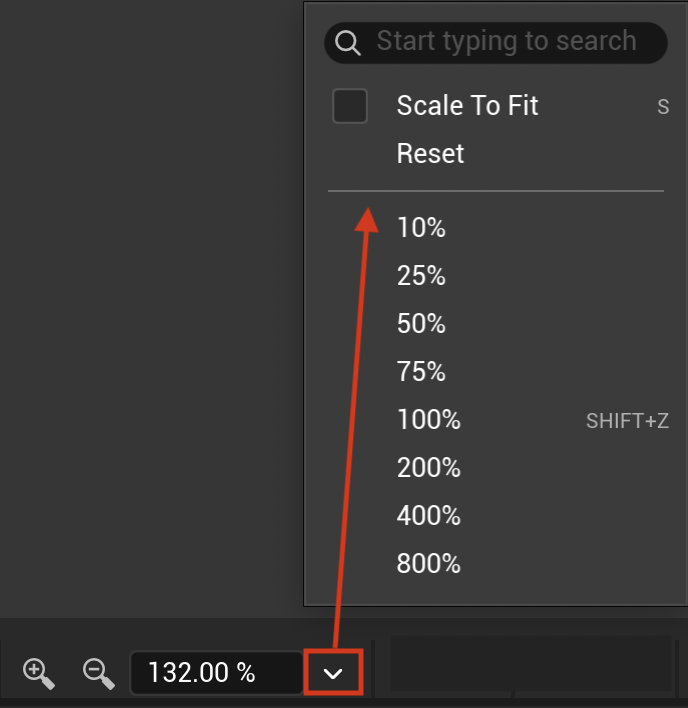
This slider allows you to zoom in and out your canvas. You can also use the menu by clicking on the upside down triangle to choose the zoom options in %. The option “Scale to fit” will automatically fit the size of your canvas to the size of the Viewport window (shortcut is S)
Tip
You can also use the Mousewheel up and down or hold M+RMB and move to the right to zoom in or to the left to zoom out.
Flip#
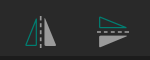
To flip your canvas horizontally or vertically, use these icons:
Reset#
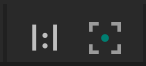
You will find 3 icons here to reset your canvas pan, rotation and zoom:
From left to right:
The 1st one centers your canvas, changes the zoom ratio to be 100% and cancels the rotation.
The 2nd one centers your canvas and fits the canvas in the window, but won’t change the rotation.
The 3rd one centers your canvas, change the zoom ratio to fit in the window and cancels the rotation.
There is a 3rd option hidden in the settings
Settings#
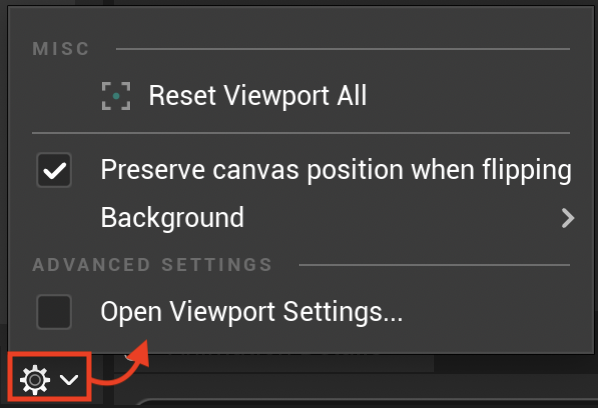
Click on the gear to display this dropdown menu:
Reset Viewport All#
This Reset button centers the canvas, fits it to the window, cancels rotation and cancels flip.
Preserve Canvas position when flipping#
When this option is enabled, flipping horizontally or vertically will take the entire window in consideration. When disabled, only the canvas (the drawing area) will be flipped.

Canvas without flipping#
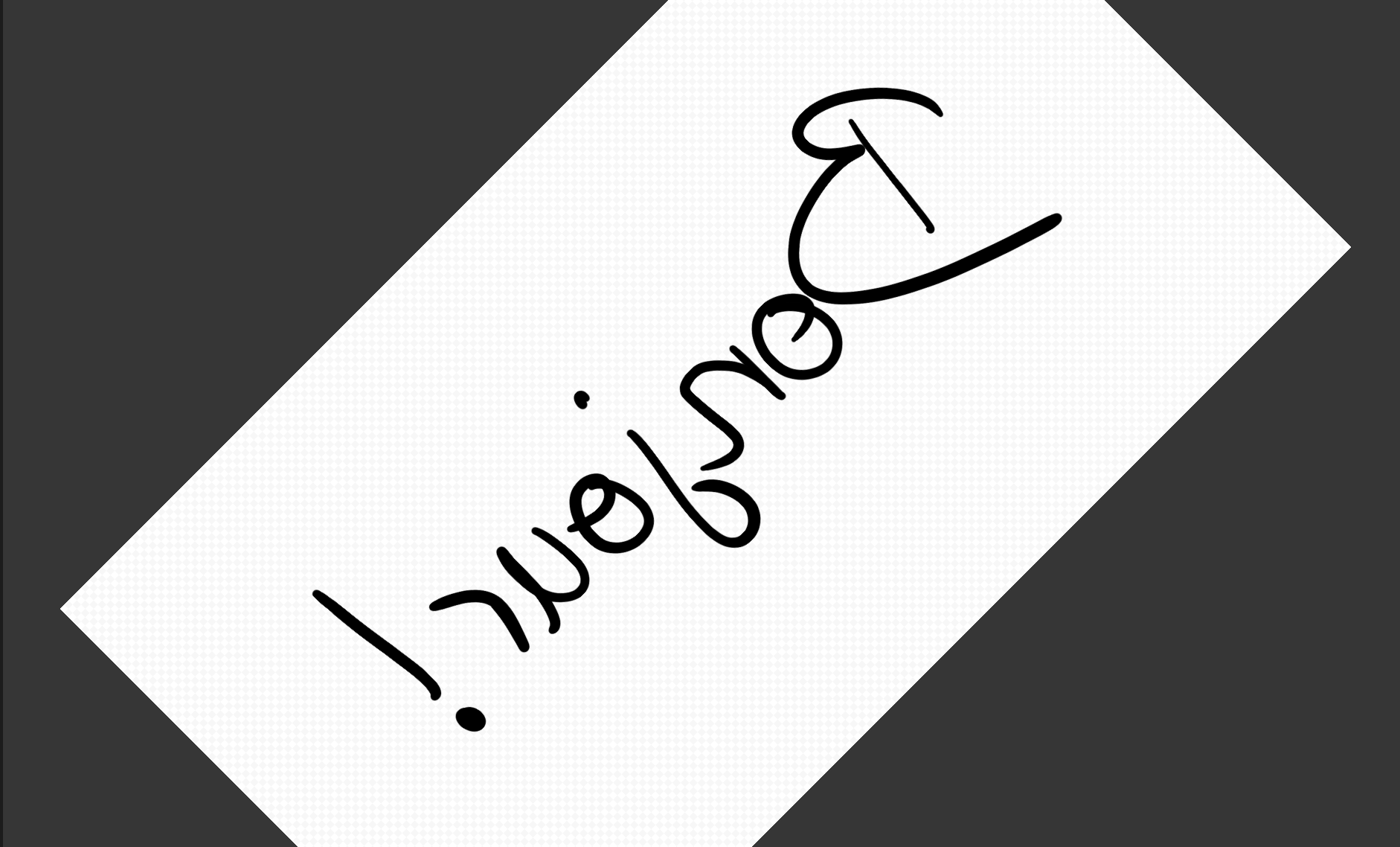
Preserve Canvas position on#
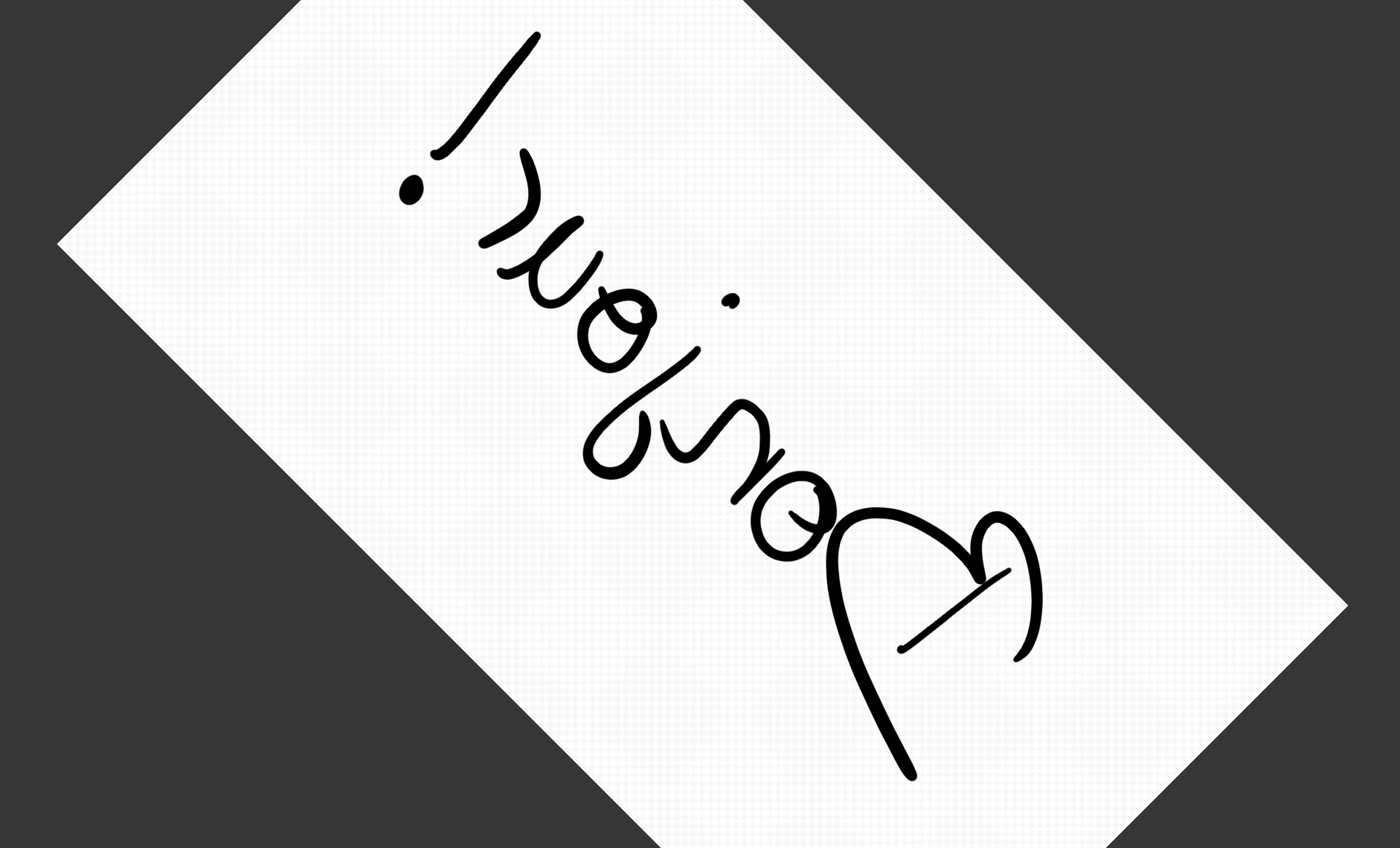
Preserve Canvas position off#
Background#
This sub-menu offers the possibility to change the color of the 2D Viewport window, including the “empty” area and the color of the checkboard to symbolise the translucency of the canvas.
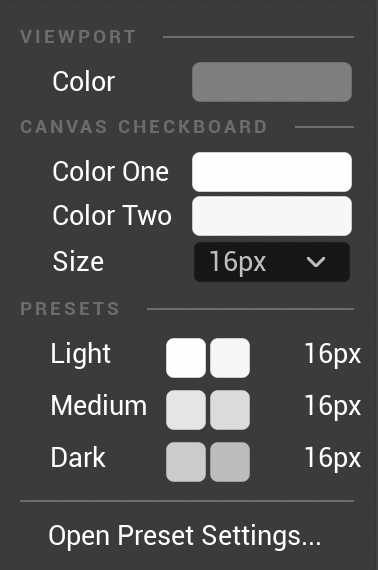
You can also open the Preset Settings