Shortcuts#
Shortcuts can be found in the menu Edit ▸ Keyboard Shortcuts.
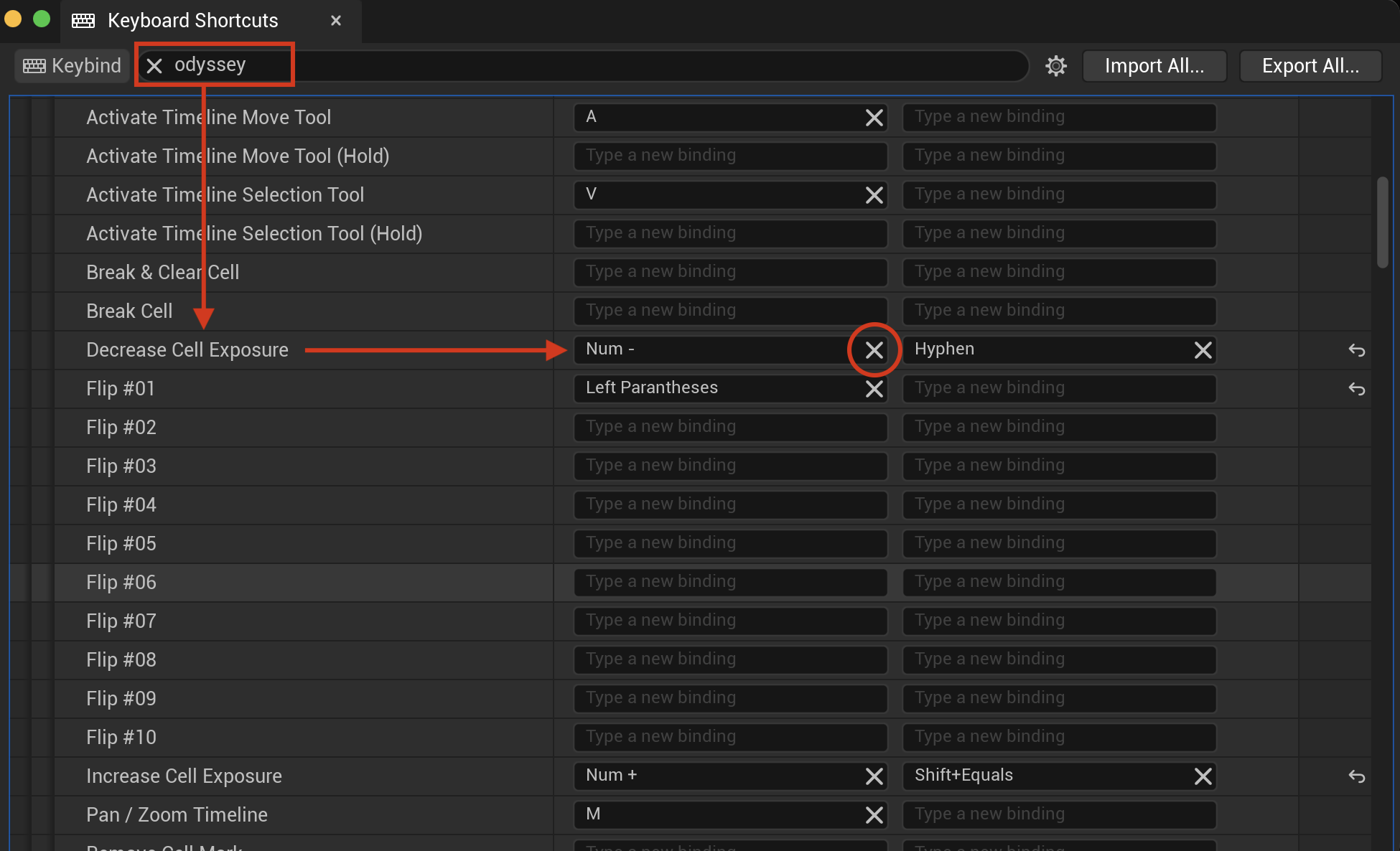
There are lots of elements to be configured. The shortcuts about animation and drawing can be found when you search for “Odyssey”.
Keyboard Shortcuts are extremely numerous and cannot be all listed here. We advise you instead to refer to the corresponding lesson to know the shortcut to a feature you need to use.
Saving your Shortcuts#
Before you start changing the shortcuts, we advise you to make a copy of the Keyboard Shortcuts file. If you don’t do this, the only other solution to reset shortcuts and get the original is to:
Close Unreal Engine
Go to
%LocalAppData%\UnrealEngine\{Version}\Saved\Config\WindowsEditor\(Windows) or/Users/Shared/Epic Games/{Version}/Engine/Config/(Mac)Remove the file EditorKeyBindings.ini and keep it safe somewhere else.
(Un)Binding a shortcut#
Use the search field to find what you are looking for. Then, type the key or combination of keys to bind it to the feature. You can also use the second column to bind an alternative key. If you want to remove a key bind, click on the tiny cross.
Finding a key bind#
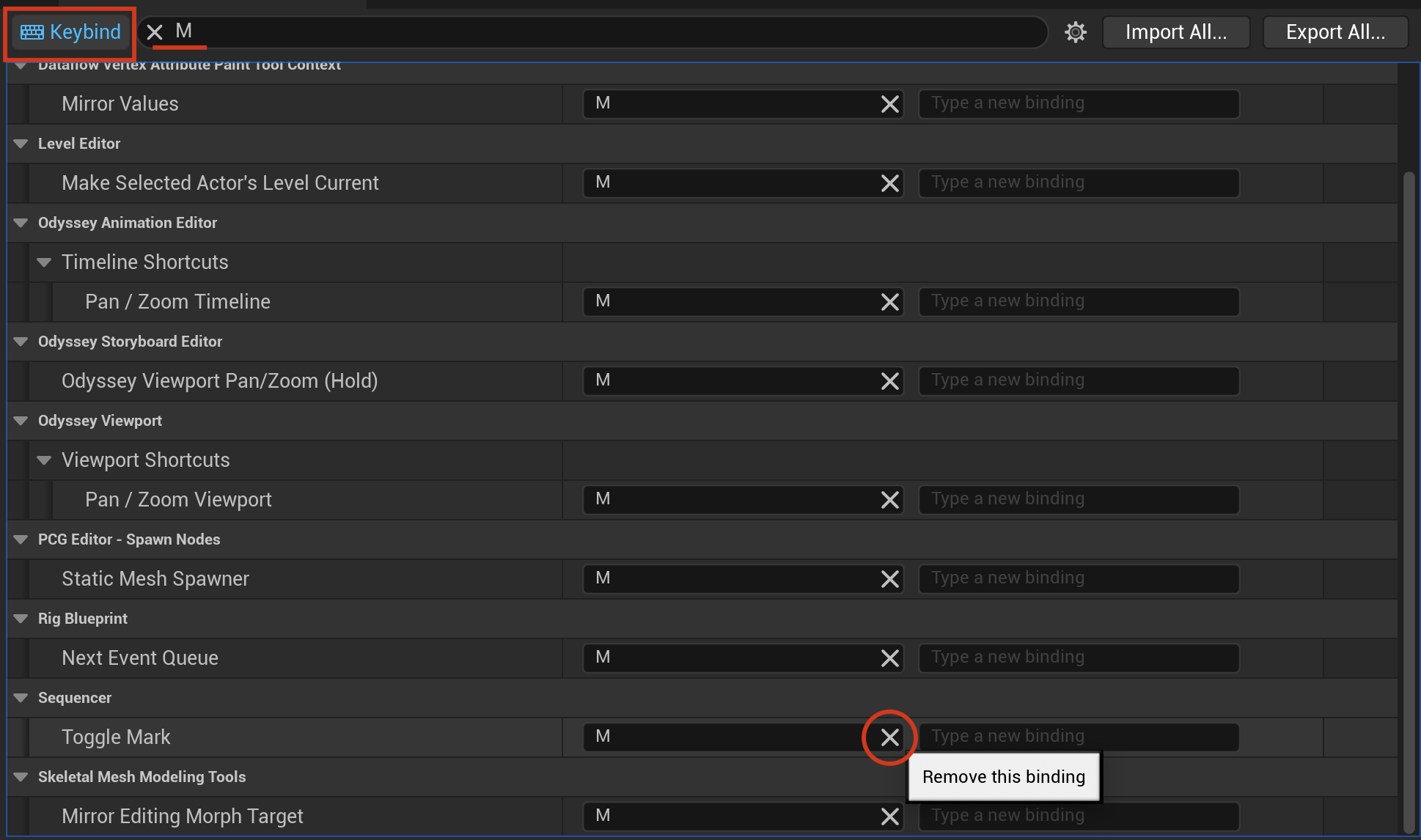
One of your shortcuts seems overriden by another feature in Unreal Engine?
You can use this option and type your shortcut to unbind the feature to the keyboard shortcut: